Showing posts with label Bloatware. Show all posts

Monday, December 21, 2015

First 56th hour with Redmi Note 2


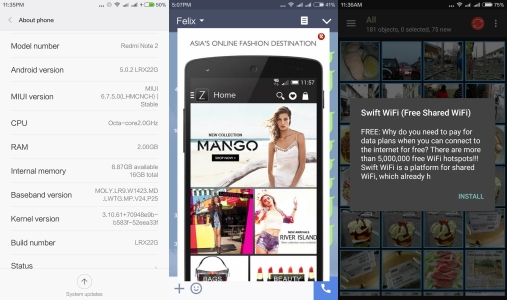
Now, that I have the Redmi Note 2 running MIUI 6.7.5.0LHMCNCH 2GB RAM 16GB ROM for 56 hours, I experienced more irritating bloatware and advertisement popping up quite frequently right in the midst of messaging or doing other task.


Charging the phone was my biggest hurdle, it is just taking too long to fully charge the phone. Initially, it took 12 hours. I tried using the using the 2.0A charger that came with the Redmi, Anker 5-Port USB Desktop Charger which has 2.1A and 1.0A ports for my iPhone and iPad, and my APC 2.1A powerbank. Just did not do the job. I can confirm there definitely a battery or motherboard problem, definitely the fast charging is not in place. Am going to try the new ROM upgrade tomorrow, and see whether it is the software.

Being a benchmark freak, I ran the Antutu Benchmark v5.7.1, then, a system message popped suggesting I download the 64bit version. Got that done, ran the test with power setting on “Performance”. Hahaha, the test just stopped after reaching 76%. Yet, I am puzzled again. With an expectation of getting 40k plus result. Yet another disappointment underway, so I cheated the benchmark by plugging it to the power source, only then it did complete the test with disappointing result, a far cry from the reviews made on it.


Something to note, as I was replying to MIUI forum and inserting images, suddenly a new error message “running low on memory” and I felt that is strange, equipped with a 2GB RAM is quite sufficient to do this small multi-tasking job, right? Then I checked, I had only four tasks out of two apps opened, which is 3 tabs of Chrome and Facebook app. You kidding me, right? Maybe the other variant of 3GB RAM and 32GB ROM would actually be more practical.

Battery life on the Redmi Note 2 is still bugging me, I have my iPhone 6s Plus and the battery drain pattern is so consistent that I need a 5000mAh APC power bank to suffice my daily use and my Android phone being my secondary backup. With this option, my Redmi Note 2 is sucking so much juice in such a short period of time, despite having a 3060 mAh battery size.

The 13-megapixel shooter is really the strong pointer, pictures are clear and crisp. But, sadly, when there are a few apps running on the background, the camera lagged so bad that I lost a few shots which was not saved for reason unknown.


Next, the screen and resolution is great with a shortfall of the light sensor not working smoothly.

Lastly, the much hyped about Infrared Remote control app, which is nowhere to be found. And yes, the mechanism is there alright. And I had to google the MIUI forum, and I managed to get an APK with some English translation meant for the Chinese market from one of the user.


Hopefully, with the much awaited Global Stable ROM tomorrow, we the MIUI will get the betterment and benefit from the upgrades.

Disclaimer:
This is my unbiased user hands-on experience and thoughts based on the mentioned product and its interactions.

© 2015 Felix Senada. All rights reserved.

Google Play Store for Redmi Note 2/Prime for noobies


This is my journey getting a Redmi Note 2, currently meant for the China with a Chinese version ROM pre-installed with Mi App Store instead of Google Play Store in place. Feels rather handicap without the convenience of Google Play and getting most of the Google apps. My Redmi Note 2 was pre-loaded with Stable ROM (MIUI6) Version: V6.7.5.0LHMCNCH and bundled with annoying Bloatware.


No worries. Here, I will share how to get out of the frustration. After reading numerous tutorials and forums, and making sense out of them.

There are a few methods of doing it, this being the simplest. I will be sharing more in time to come after having a hands-on experience and making sure they work with reliability and safe as not to FC your new phone.

IMPORTANT:
Before even going any further, please make sure you enable your settings for installing a 3rd party APK files. READ my tutorial on installing APK at this link:


NOTE: First thing first, since the device is running on a STABLE ROM, hence you will not have access to “ROOT” the phone. To be able to have a ROOT privilege, you need to install at least a Beta ROM or DEVELOPER ROM. Otherwise, apps like WinDroid Universal Android Toolkit, Root android is needed.

It is encourage that you update to Stable ROM (MIUI7) Version: V7.0.8.0.LHMCNCI which do not have the “ROOT” privilege which is Bloatware free. You could do it via OTA and install on your phone. For Computer/PC, create a “ downloaded_rom” folder, copy the Zip file into it. Transfer the “downloaded_rom” folder into the Internal Memory of your Redmi Note 2 via USB connection. Click the image below to download the latest Stable ROM :-


Should you run into "error signature failed" problem, install V7.0.6.0.LHMCNCI first, then only update to the latest version V7.0.8.0.LHMCNCI. Click the link below to get V7.0.6.0.LHMCNCI.ZIP file.


This is what you going to see after you finish updating your ROM, below.


FROM YOUR PC/COMPUTER:


1. Click the Google Installer Icon to download the “Google Installer”.


Goto to get the link. Thanks.


2. Transfer the Google Installer to the internal memory of your Redmi Note 2 via USB connection.


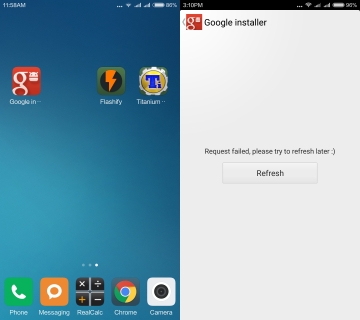
3. Just follow thru’ the sequence like the above illustration. Goto File Explorer>APKs>Google “Installer.apk”.


4. Click Google Installer icon. That will bring you in the Installer. If you do get the “Error Message” like in the illustration, try a few times and will show a list of Google Apps available to download.


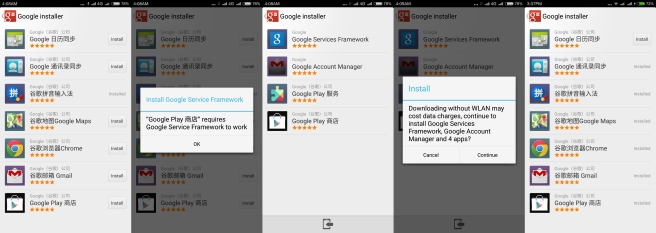
5. Install the “Google Play” and follow thru’ as in the above image. It will then install, Google Service Framework, Google Account Manager, Google Play services and other Google apps. I install most of the apps like Google Maps, Google Chrome browser and of course the Google Contacts Sync to be able to sync all your contacts or else it will not synchronize automatically.


6. Now your Redmi Note 2 is now all set with all the Google apps and services.


FOR MORE DETAILS ON UPDATING YOUR ROM, READ MY THREAD and click the link below:-


Disclaimers

I will not be responsible for any harm, damage, that may occur to your device through the use of this tutorial. Please do not post, mirror, or take credit for this tutorial or any related work without explicit permission.

© 2015 Felix Senada. All rights reserved.